If you're losing deals because your product can't sync with QuickBooks Desktop or Sage 300 CRE, you're probably not missing a connector, you're missing the right architecture for it. On-prem systems require a fundamentally different integration pattern than anything cloud-based, and v2 flows give product teams a cleaner way to build around that variability without reinventing the infrastructure yourself.
TLDR:
- Around 30% of ERP deployments run on-premise, making on-prem sync a live requirement in construction, nonprofit, and mid-market manufacturing.
- On-prem integration uses 3 distinct patterns: Windows agent (QuickBooks Desktop), direct database (Sage 300 CRE), and cloud proxy (Sage 200).
- V2 flows separate supported entities from linked entities, stopping field mapping failures caused by per-tenant schema differences.
- Build field mapping at the tenant level, not the connector level, so schema quirks in one environment never affect another.
- Hotglue ships all three on-prem patterns as production connectors inside the same embedded v2 flow experience your cloud tenants already use.
Why On-Prem Systems Still Matter for Your Integration Roadmap
A real portion of your customers are running QuickBooks Desktop, Sage 300 CRE, or Sage 200 on a local server somewhere. Cloud adoption is accelerating, but legacy ERP doesn't retire on your timeline.
In construction, nonprofit, and mid-market manufacturing, on-prem accounting software isn't a legacy edge case. It's the default. If your SaaS product can't sync with those systems, you're losing deals to competitors who can. That's why product teams building integration strategy put on-prem support near the top of the roadmap early.
What Makes On-Prem Integration Architecturally Different
Cloud integrations are relatively straightforward: your pipeline calls an API endpoint, gets data back, moves on. On-prem systems work nothing like that.
QuickBooks Desktop, Sage 300 CRE, and systems like the Microsoft Dynamics on-premise connector run behind a firewall on a local machine or private network. There's no outbound HTTP endpoint to poll. Your integration server can't reach in and grab data the way it would with a REST API.
The communication model flips entirely. Instead of your system pulling data from theirs, the on-prem software has to initiate the outbound connection. That single constraint is why every reliable on-prem integration architecture looks fundamentally different from a cloud connector, and why most embedded iPaaS providers simply skip it.
| Pattern | System | How It Connects | Onboarding Footprint | Key Tradeoff |
|---|---|---|---|---|
| Windows Agent | QuickBooks Desktop | QuickBooks Web Connector installed on the user's Windows machine; initiates outbound SOAP/XML sync on a schedule | User installs the Web Connector, adds a .qwc file, and sets a file path per company | Sync depends on the agent machine being on and the correct company file being configured |
| Direct Database | Sage 300 CRE | Connector installs on the customer's on-premise server and reads directly from the local database | Run installer on the server, confirm database permissions, validate table access | Write operations are more complex at the DB layer; schema differences across environments require version-specific handling |
| Cloud Proxy | Sage 200 | Lightweight proxy bridges the local machine to a cloud endpoint without exposing the database directly | Connect local machine to the proxy endpoint and confirm outbound connection is stable | Adds a network hop; reliability depends on the customer's connection to the proxy staying stable |
The Windows Agent Pattern: How QuickBooks Desktop Integration Works
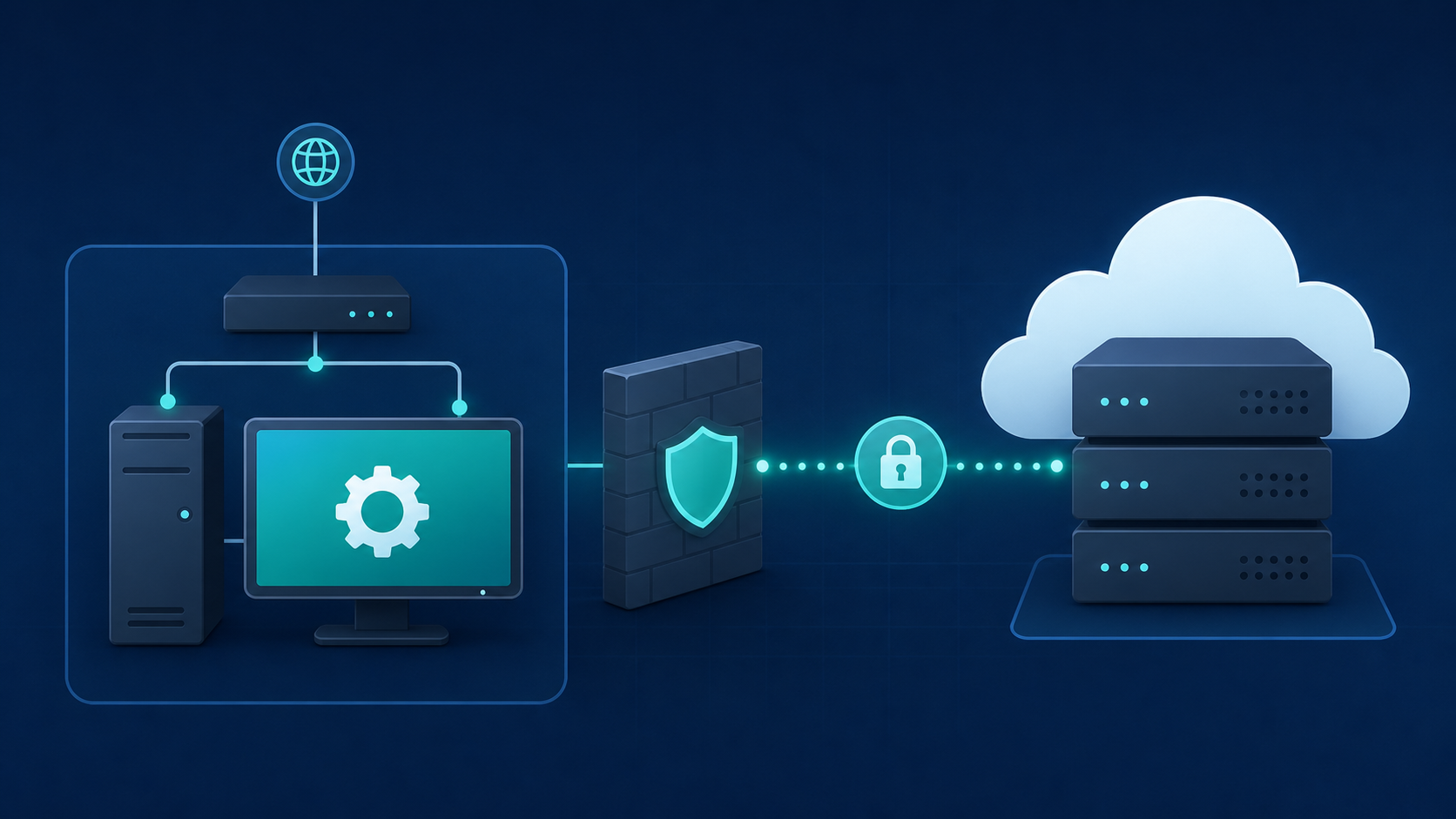
QuickBooks Desktop has no REST API. Intuit's solution is the QuickBooks Web Connector: a Windows app that runs on the end user's machine, polls a remote endpoint on a schedule, and exchanges data via SOAP/XML against the local company file.
For product teams, that creates a few concrete realities:
- Your end user has to install software on their Windows machine before any sync can happen.
- Multi-company setups require explicit file paths per company, so you can't rely on whichever file happens to be open. That's a challenge solved by per-subtenant sync health monitoring for multi-tenant QuickBooks Desktop deployments.
- Data must be sent in small batches to avoid timeouts during sync.
The on-prem machine initiates the connection outbound. Your server doesn't reach in; it waits for the agent to call home. That inversion changes how you think about sync scheduling, error handling, and onboarding entirely.
The Direct Database Pattern: How Sage 300 CRE Integration Works
Sage 300 CRE takes a different path entirely. There's no public REST API and no Web Connector equivalent. The reliable integration pattern here is a connector that installs directly on the customer's machine and reads from the local database.
That means connecting at the database layer, not through an application interface. The practical upside: database schemas in Sage 300 CRE are stable across UI updates. When Sage ships a new version, your connector won't break because the underlying tables didn't change. You're not dependent on Sage publishing or maintaining a consistent API surface.
The tradeoffs are real, though:
- Write operations are more complex at the database layer than through a vendor-supported API, so your team needs to plan for that upfront.
- The connector has an installer footprint on the customer's machine, which adds onboarding friction compared to cloud-based connectors.
- Schema differences across customer environments require version-specific handling on your side.
For construction and real estate SaaS teams, this is a live customer ask. Sage 300 CRE is widely deployed on-premise in those verticals. Hotglue's Sage 300 CRE connector is one of the top accounting platforms to integrate with, and it handles this by installing directly on-premise and connecting to the local database, with resilience to software updates built into the connector design.
The Cloud Proxy Pattern: How Sage 200 Integration Works
Sage 200 sits somewhere between a full local agent and a direct database connection. The integration runs through a cloud proxy: a lightweight bridge that the customer's machine connects to, making the on-premise system reachable from a cloud endpoint without requiring a heavy installation footprint.
The practical difference for your customers is meaningful. Setup is lighter than a full Windows agent, and there's no need to expose the local database directly. The proxy handles the translation layer, so your integration logic stays on the cloud side, supporting bi-directional integrations without extra infrastructure work.
There is one tradeoff worth knowing upfront: the proxy adds a network hop. For most accounting sync use cases, that latency is negligible. If you're building something that needs near-real-time data from Sage 200, factor it into your sync frequency expectations. Reliability also depends on the customer's connection to the proxy staying stable, which is one more variable compared to a direct database read.
For UK-focused SaaS teams, Sage 200 is a common ask. Hotglue supports it through this cloud proxy model, so you can ship the integration without designing the proxy infrastructure yourself.
What "v2 Flows" Changes for On-Prem Connectors
With cloud connectors, most tenants connect to the same API surface. One QuickBooks Online instance looks a lot like another. On-prem is different: Sage 300 CRE customers run different module configurations, different version numbers, and different chart of accounts structures. What one tenant has available, another simply won't.
That's where the distinction between supported entities and linked entities in v2 flows becomes practically useful. Supported entities represent what the integration is capable of for a given connector. Linked entities represent what a specific tenant has actually connected and configured. On-prem systems make that gap concrete.
V1 flows largely collapsed those two concepts together. For cloud connectors with stable, uniform APIs, that worked fine. For on-prem connectors with per-tenant schema variability, it created correctness problems at scale: a field mapping built against one Sage 300 CRE environment would silently fail against a customer running a different module set.
V2 flows, part of hotglue's scalable integration architecture, give product teams a cleaner surface to expose connector capabilities without overpromising. You define what the integration supports, then let each tenant's linked configuration reflect what's actually available in their environment. Your UI shows customers only what applies to their specific installation, and your sync logic stops assuming a uniform schema that on-prem deployments rarely have.
End-User Onboarding: What Your Customers Actually Have to Do
Onboarding friction is where most on-prem integration projects quietly fall apart. The connector works fine in testing, then a customer opens a ticket because they can't find their company file path, or they installed the Windows agent on the wrong machine.
What your customers actually face depends on which pattern sits underneath their connector:
- Windows agent (QuickBooks Desktop): install the Web Connector on the machine where the company file lives, add the
.qwcfile, set the correct file path per company, and configure an auto-run schedule. - Direct database (Sage 300 CRE): run the installer on the on-premise server, confirm database permissions, and validate the connector can reach the right tables.
- Cloud proxy (Sage 200): connect the local machine to the proxy endpoint and confirm the outbound connection is stable.
None of these steps are hard for a technical user. They are hard for an accountant who just wants their data to sync, and who definitely did not sign up to become an IT professional when they took the job. (The accountant's job description said nothing about .qwc files. We checked.)
The practical fix is documentation that meets your customer where they are, paired with UI flows that spare your engineering team from hand-holding. As part of managing your app integrations, Hotglue's Magic Links let you send a customer a branded URL that walks them through connector setup directly, without embedding a widget or writing custom onboarding flows. For on-prem connectors, that setup flow can include the file path prompt and install instructions inline, so customers finish configuration without opening a support ticket.
Schema Variability and Tenant-Specific Configurations
Two customers on identical Sage 300 CRE versions can have completely different field structures. One has custom job cost fields their team built five years ago. Another runs a stripped-down chart of accounts with no custom modules. A mapping that works perfectly for one will silently drop data for the other, or worse, fail in ways that look like success.
The root issue is that on-prem ERP schemas are configured by the business, not standardized by the vendor. Chart of accounts layouts, active modules, and custom fields all vary by installation. A connector that assumes a fixed schema is really only tested against whoever set it up first.
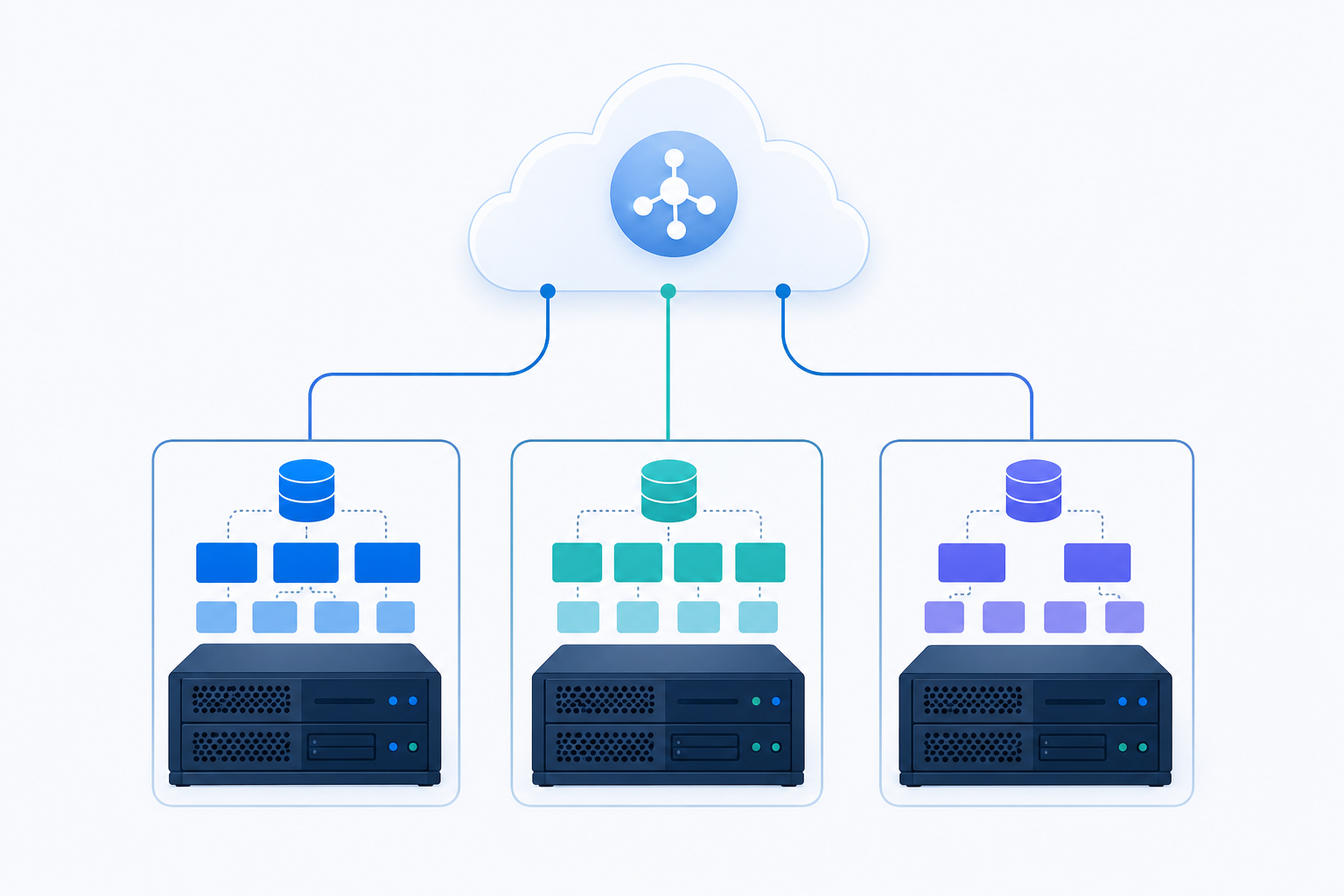
Handling this at scale means building field mapping at the tenant level, not the connector level. Each tenant gets its own mapping configuration reflecting what's actually present in their environment. Transformation logic needs to treat optional fields as optional. If Customer B doesn't have that extra vendor classification field, the sync should skip it cleanly, not error out.
Hotglue's per-tenant field mapping and conversion layer handles this directly. Using hotglue's native app integration tools, Python mapping scripts can check for field presence before processing, and tenant-specific configurations stay isolated from each other, so a schema quirk in one customer's environment never touches another.
Sync Reliability and State Management for On-Prem Systems
On-prem sync failures aren't abstract edge cases. The Windows agent goes offline because someone restarted the accounting machine. The company file is locked because an accountant ran a report at the same time the sync tried to pull data. The machine is simply off at 2am when the scheduled job fires.
Cloud connector failures are usually transient API errors. On-prem failures are environmental, and the recovery path is different.
Stateful syncing matters here more than anywhere else. If a sync restarts without knowing where it left off, you risk re-sending thousands of records downstream. For financial data, that's not a minor bug. Hotglue guarantees that a partial sync failure won't silently succeed: the job either completes or fails cleanly and preserves state for retry, so the next run picks up from the right checkpoint instead of replaying the full dataset.
Monitoring also works differently when the data source is behind a firewall. You can't poll the on-prem system directly to check health. What you can observe is whether the agent is calling home on schedule. A missed sync window is your signal. Hotglue's job health tracking flags stalled jobs and surfaces the affected tenants, so your team knows which customer's agent has gone quiet before that customer opens a support ticket.
How hotglue Handles On-Prem Connectors in Production
All three patterns covered here (Windows agent, direct database, cloud proxy) ship as production connectors inside hotglue's embedded v2 flow experience. Your tenants connect through the same widget or Magic Link they'd use for any cloud connector. There's no separate on-prem integration path to build or maintain.
A few connectors worth knowing about:
- The QuickBooks Desktop connector handles multi-user environments via the QuickBooks Web Connector, supports writing Purchase Orders, and manages the file-path-per-company requirement that trips up homegrown implementations.
- Sage 300 CRE installs directly on-premise, reads from the local database, and holds up across software updates because it's not tied to an application API surface that Sage can change.
- Sage 200 runs through a cloud proxy and supports writes (products, sales orders, invoices, credit notes) in addition to reads, making it a full bidirectional connector for UK-focused SaaS teams.
These connectors run against the same tenant model as everything else: 38,000+ active tenants, roughly 10 billion records processed weekly, built on open-source Singer and Airbyte-compatible specs. On-prem tenants aren't a special case in the architecture. They're just tenants.
On-prem support is a structural requirement for any embedded integration layer built for developers, by developers, that serves real accounting, construction, or mid-market ERP workflows. The architecture is built around it so your product team doesn't have to be.
Final Thoughts on On-Premise SaaS Integration Patterns and What They Mean for Your Product
On-prem ERP sync rewards teams that think through the architecture before the first customer tries to connect. The patterns are different, the failure modes are different, and the onboarding friction is real if you don't account for it. Knowing which approach fits your target vertical, whether that's a Windows agent, a direct database connector, or a cloud proxy, changes how you scope the whole integration. Reach out for a demo if you want to walk through how any of these connectors work in a live environment.
FAQ
How do I add Sage 300 CRE integration to my construction or real estate SaaS product?
Sage 300 CRE has no public REST API, so the only reliable path is a connector that installs directly on the customer's machine and reads from the local database. Hotglue's Sage 300 CRE connector handles this: it installs on-premise, connects at the database layer, and holds up across Sage software updates because it's not tied to an application API surface that Sage can change between versions.
What's the architectural difference between QuickBooks Desktop, Sage 300 CRE, and Sage 200 on-prem ERP sync?
Each on-prem system requires a different connection pattern: QuickBooks Desktop uses a Windows agent (the QuickBooks Web Connector) where the customer's machine initiates the outbound sync; Sage 300 CRE uses a direct database connection installed on the customer's server; and Sage 200 routes through a cloud proxy that bridges the local machine to a cloud endpoint without exposing the database directly. Picking the wrong pattern for a given system is the most common reason homegrown on-prem connectors break in production.
Can I ship an embedded on-prem connector for QuickBooks Desktop without building the Windows agent myself?
Yes. Hotglue's QuickBooks Desktop connector handles the Windows agent setup, multi-user file-path configuration, SOAP/XML batching, and Purchase Order writes out of the box. Your tenants connect through the same widget or Magic Link as any cloud connector, with no separate on-prem integration path for your team to build or maintain.
What is the difference between supported entities and linked entities in v2 flows for on-prem ERP sync?
Supported entities define what a connector is capable of across all tenants; linked entities reflect what a specific tenant has actually configured in their environment. For on-prem ERP sync, where two customers on identical Sage 300 CRE versions can have entirely different module sets and chart of accounts layouts, that distinction keeps your UI from showing fields that don't exist for a given installation, and stops your sync logic from assuming a uniform schema that on-prem deployments rarely have.
How does stateful sync prevent data duplication when an on-prem agent goes offline mid-sync?
Stateful sync tracks exactly where a job stopped so the next run picks up from that checkpoint, not from the beginning of the full dataset. For financial data, replaying records isn't a minor inconvenience. Hotglue guarantees a partial sync failure won't silently succeed, meaning the job either completes fully or fails cleanly and preserves state for retry.